Have you ever spent hours scrolling through your photography catalog, desperately trying to find a specific shot from years ago? Traditional image organization relies heavily on descriptive metadata and manual keywording. But let’s be honest: typing out keyword tags for every single shot is a tedious process—and if you skip it, your photos can easily get lost in the shuffle.
Fortunately, Artificial Intelligence is changing the game. With the release of the cloud-based Adobe Lightroom version 9.3, you can now use AI-powered Semantic Search to find your images using natural language text prompts! In this guide, we’ll explore how AI search works in Lightroom Desktop and Lightroom Web, and demonstrate a robust third-party solution that brings similar intelligence into Lightroom Classic.
What is Semantic Search?
Instead of simply matching text strings to keywords, or descriptive metadata that you manually entered, Semantic Search uses AI to analyze the actual pixels in your images. Adobe’s AI model interprets your natural text prompt, understands your intent, and then it uses an object recognition engine to find all of the images that match your query.
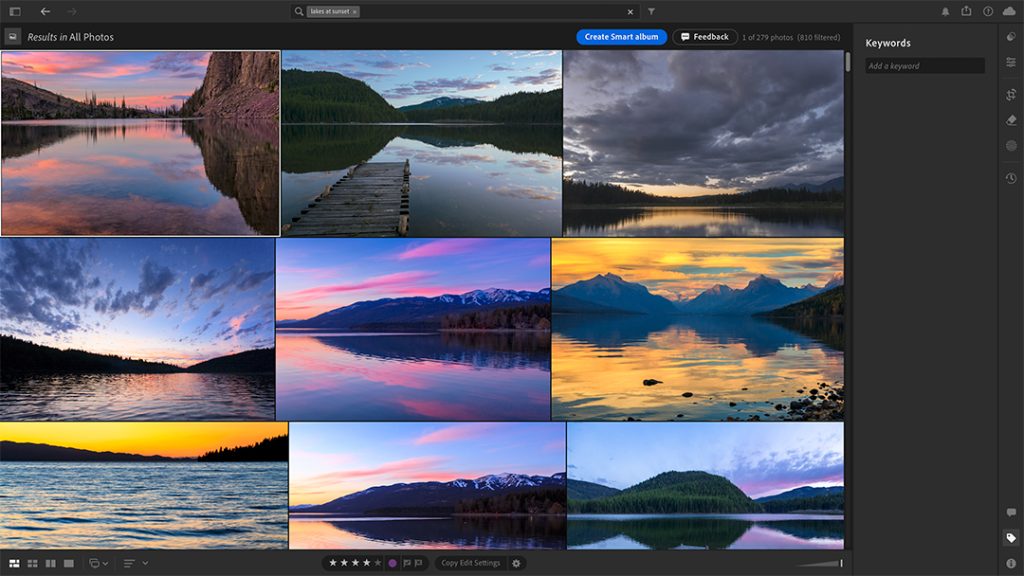
With Semantic Search, you can type out highly descriptive phrases like “dog in snow” or “lakes at sunset” and get precise matches instantly—even finding images where no keywords have ever been applied!
Method 1: Native AI Search in Lightroom Desktop & Web
Adobe’s Semantic Search algorithms operate on the server-side because this level of AI processing demands significant computing power. While this enables Semantic Search across the entire cloud-based Lightroom ecosystem, it also creates a minor limitation: you must have an active internet connection for this feature to function.
How to Use Semantic Search on Lightroom Desktop:
- Make sure you have updated to Lightroom version 9.3 or higher via the Creative Cloud app.
- Select All Photos in the left panel to ensure you are searching your entire image library.
- Click into the Search Bar at the top of the Grid View display mode.
- Describe what you want in plain English (e.g., “girl with dog” or “blue flowers”).
- Hit Enter and watch the AI instantly surface the requested photos!
The Lightroom Web Workaround for Classic Users:
If you are primarily a Lightroom Classic user then you aren’t completely locked out of this feature. If you sync images from your Classic catalog to your Adobe Cloud account then you can access Semantic Search via the web interface.
- Open your web browser and navigate to lightroom.adobe.com.
- Select All Photos to search your entire online library.
- Click into the Search Bar at the top and describe what you’re looking for (e.g., “lakes at sunset” or “purple flowers”).
- Once the AI finds the images that you were looking for, select them and group them together into a new Album, or add metadata markings like Keywords or Star Ratings.
- Within a few minutes, the metadata that you added, or the Album that you created will sync back down into Classic’s Collections panel.
Method 2: Local AI Search for Lightroom Classic (Using Excire Search 2026)
If this limited workaround isn’t robust enough, or if you prefer to work entirely offline, there is an incredible third-party solution available. The Excire Search 2026 plugin brings dedicated, advanced AI search tools right into the Lightroom Classic user interface.
Unlike Adobe’s cloud-based Semantic Search engine, Excire’s AI does its work locally on your computer. With the Excire Search 2026 plugin, you can search your library using natural language prompts even when your computer is completely offline.
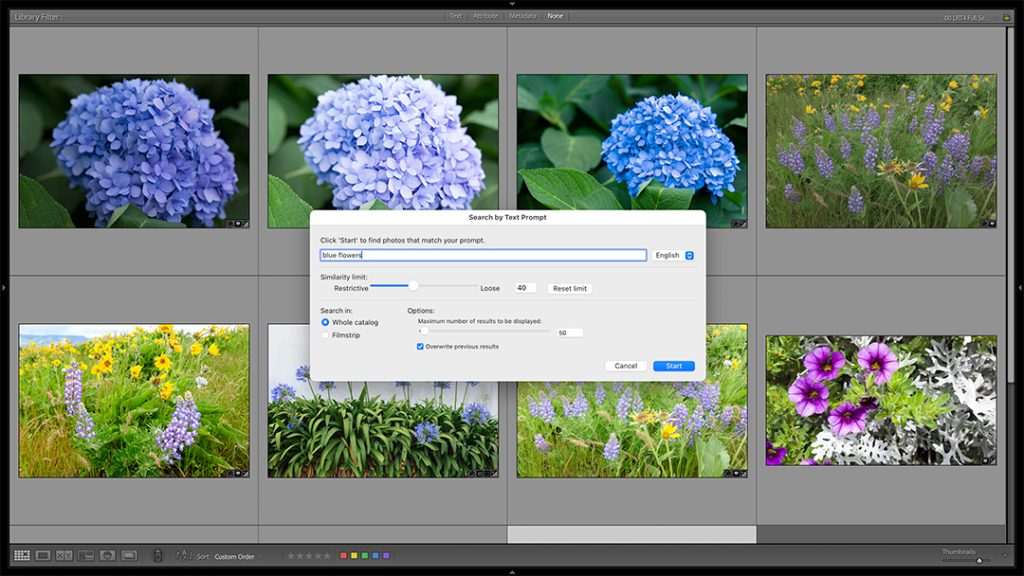
Get 15% off the Excire Search using coupon code: FocusPhoto15
In addition, Excire offers a wonderful Find by Example Photo feature. Using this tool, you can select a single photograph and ask the AI to find visually similar shots based on content or matching color harmonies. This is a huge help when you know that there are similar images buried somewhere inside of your Catalog that have fallen through the cracks.
Streamline Your Workflow Today
The future of photo management is shifting. Whether you utilize Semantic Search in Lightroom 9.3, or supercharge your Lightroom Classic catalog with Excire Search, finding your favorite images is faster and easier than ever before!